Edit Mode
How to add, edit, reorder, and manage items on your pages.
Entering Edit Mode
To modify a page's content, you need to enter Edit Mode:
- Long-press anywhere on the page
- Or tap the ⋮ page menu in the top right and choose Edit
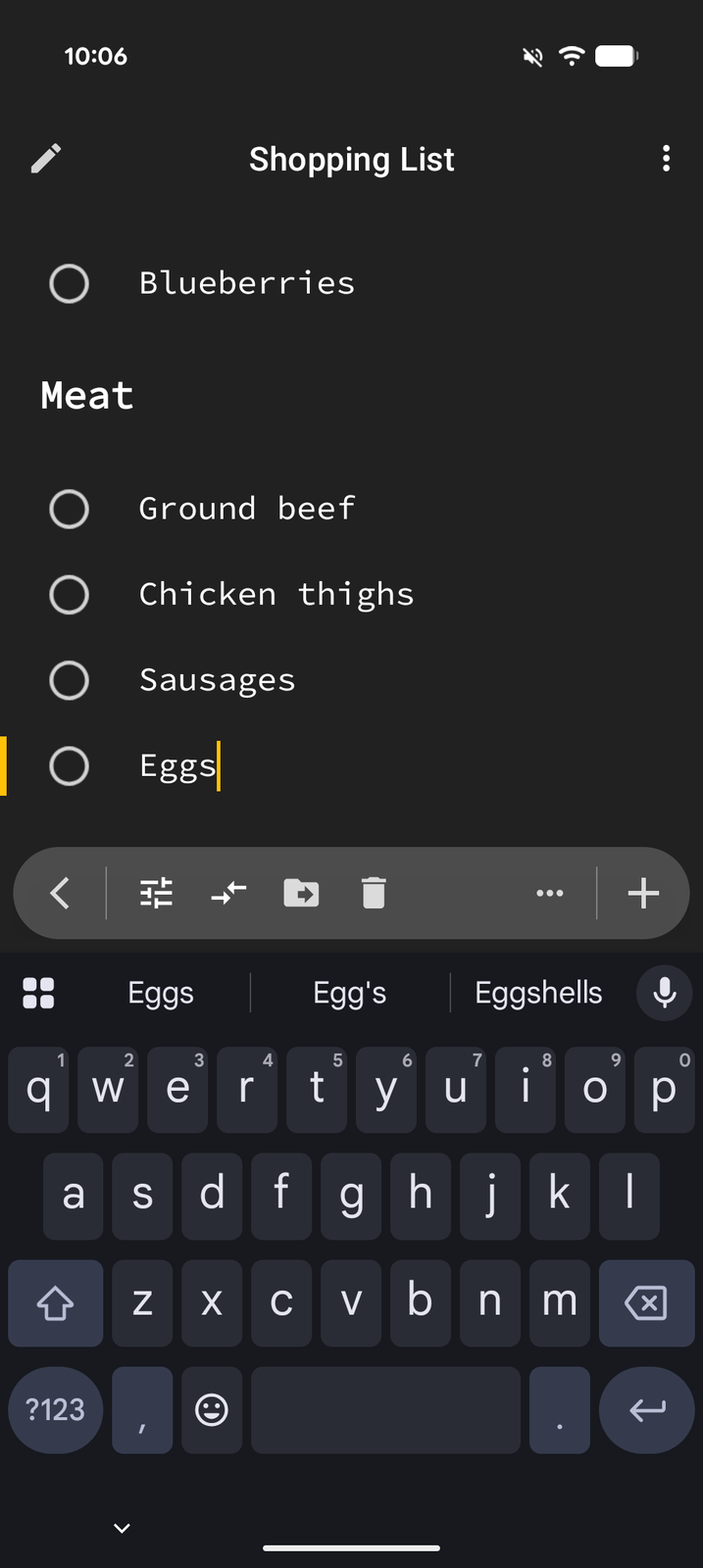
When in Edit Mode, you'll see a bottom toolbar with editing actions and your items become editable.
The Edit Toolbar
The bottom toolbar in Edit Mode provides quick access to common actions. What it shows depends on whether an item is focused.
With nothing focused:
- + (Add) — Add a new item to the page
- Select Mode — Select several items at once
- Share — Export the page
- Background — Set the page's background color
- More (...) — Page Options, Save as Template, and Help
With an item focused:
- Properties — Open the item's properties editor
- Switch — Change the item's type (Page, Heading, Text, Link) or its marker (bullet, number, task, blockquote, heading level)
- Move / Delete — Move the item to another page, or delete it
- More (...) — Copy, Select, Hide/Show, Lock/Unlock, Pin/Unpin
Adding Items
- Tap the + button in the edit toolbar
- Select an item type from the menu
- Enter your content
- The item is added to the end of the page. If an item was focused when you tapped +, a position dropdown at the top of the sheet lets you add it before or after that item instead
Editing Items
- Text items: Tap on any text item to start editing it. The keyboard will appear and you can type directly.
- Other items: Tap the item to edit its name inline. To change its other settings, tap Properties in the bottom toolbar while the item is focused. Pages also show an arrow on the right that opens the page without leaving Edit Mode.
Reordering Items
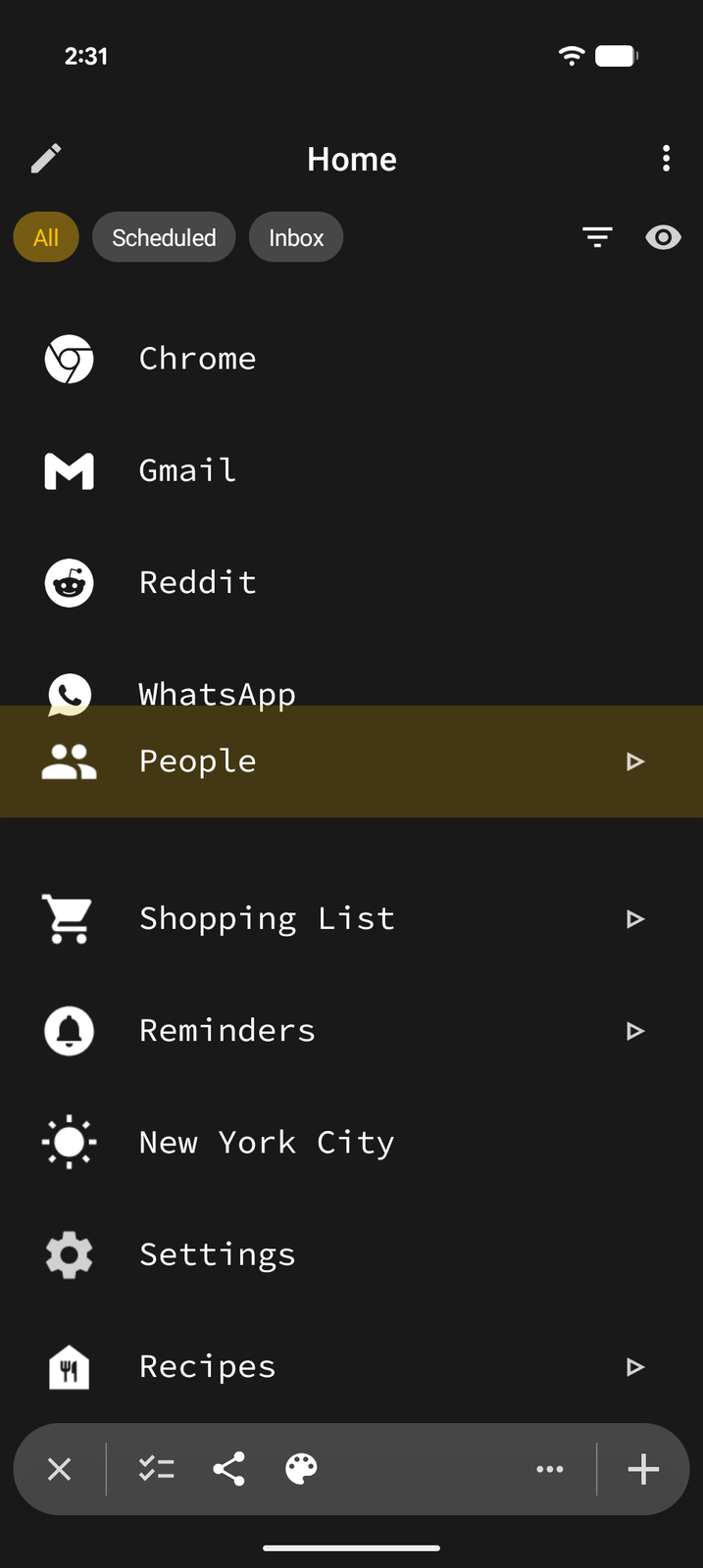
Drag and drop to reorder items within a page:
- Long-press an item until it lifts up
- Drag it to the desired position
- Release to drop it in place
Selecting Multiple Items
To perform actions on multiple items at once:
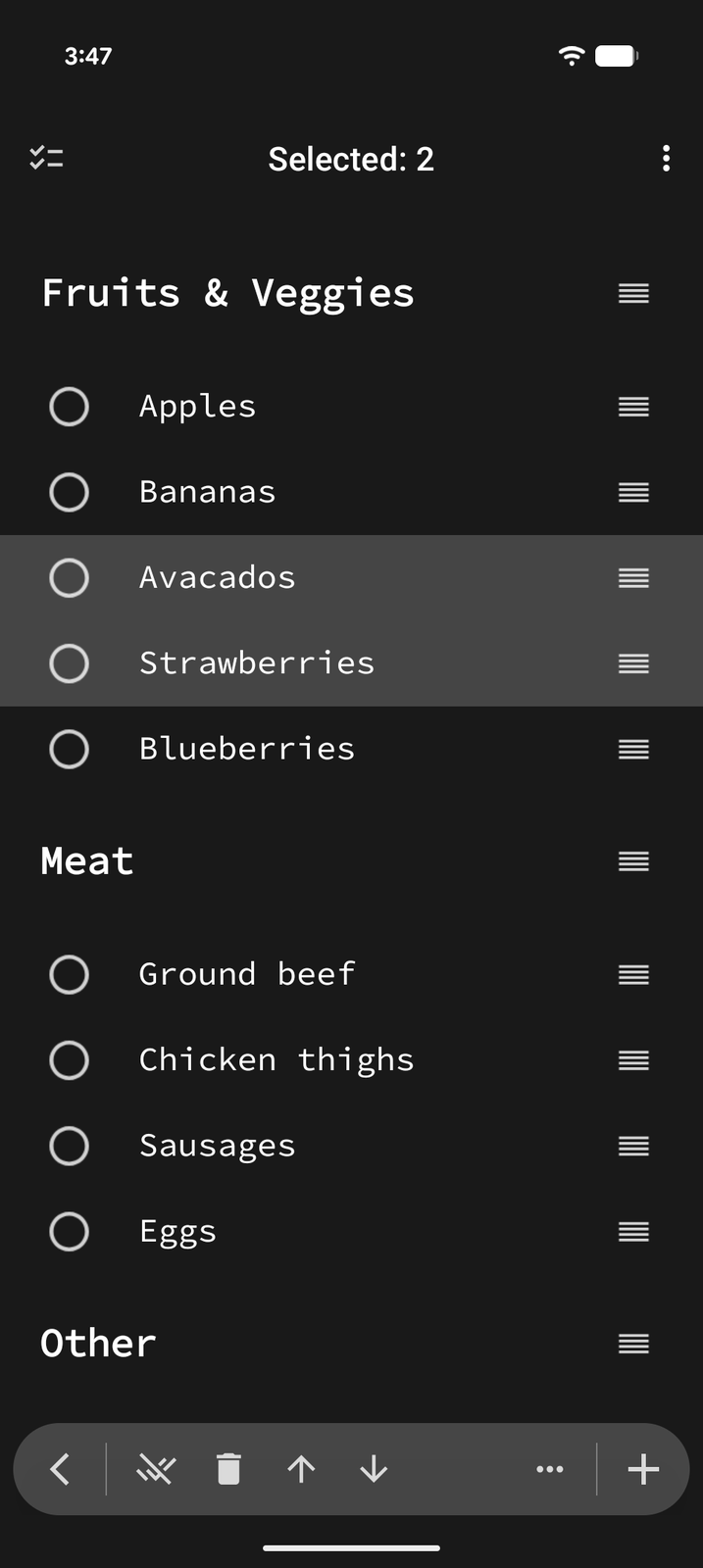
- Tap Select Mode in the bottom toolbar (or, with an item focused, Select under More (...) to start with that item selected)
- Tap items to add them to the selection, or use Select All
- Use the toolbar actions — Delete, Move Up, Move Down, and under More (...) Copy, Move, Export, Alignment, Convert, and Complete All when every selected item is a task
Item Options
With a text item focused, tap Properties in the bottom toolbar to open its editor, then tap the ... button in the editor's action row to open the Options sheet:
- Date — Add or change the date
- Time — Set a time of day (with a date)
- Repeat — Set recurrence: Hourly, Daily, Weekdays, Weekends, Weekly, Biweekly, Monthly, Quarterly, Biannually, or Yearly
- Reminder — Set a notification reminder
- Tags — Add or manage tags
- Icon — Change the item's icon
- Color — Set a background color
- Alignment — Align the item's text left or center
- Pin — Pin the item for quick access
- Move — Move the item to another page
- Completion — Completion history for recurring tasks
- Auto Pop-Out (pages only) — when on, the page automatically opens in its own floating window when you tap it
- Auto delete — Toggle auto-delete on task completion (only appears for non-recurring tasks)
Not all options are available for all item types — the menu adapts to show relevant options.
Deleting Items
- Focused item: Tap the item, then tap Delete in the bottom toolbar
- Several items: Enter Select Mode, select the items, and tap Delete
- Swipe: In Edit Mode, swipe an item from right to left to delete it
Deleted items go to the Recycle Bin and can be recovered for 30 days before permanent removal.
Copy and Move
- Copy — Duplicate an item (or multiple selected items) to the same or a different page
- Move — Move item(s) to a different page in your hierarchy
Hiding Items
You can hide items without deleting them. Hidden items are not visible in normal view but remain in the page. In Edit Mode, swipe an item from left to right to hide or unhide it, or use Hide/Show under More (...) while the item is focused.