Apps & Contacts
Add app shortcuts, contact shortcuts, and Android settings shortcuts to your pages.
App Shortcuts
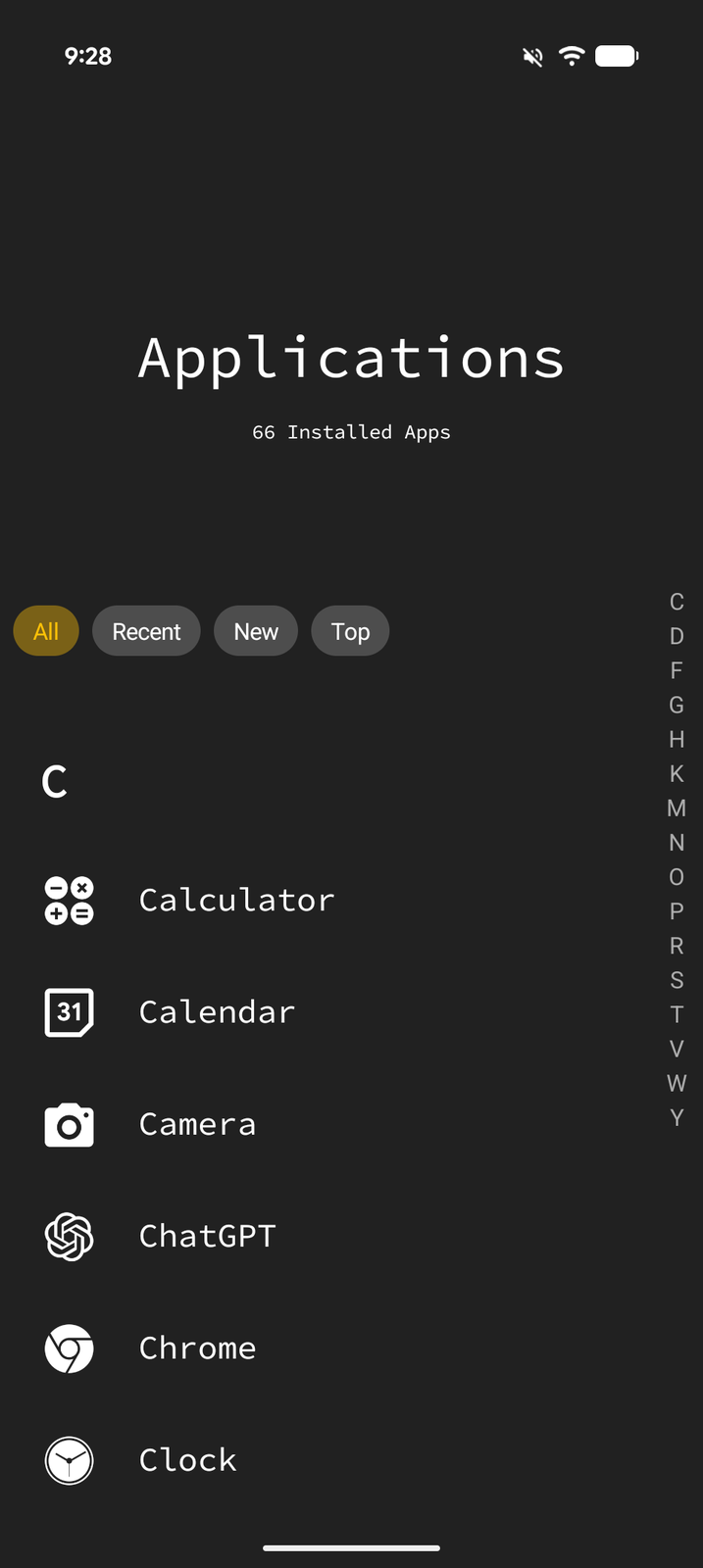
Tree Launcher is a full home screen replacement, so launching apps is a core function. You can place app shortcuts on any page in your tree.
Adding an App
- Enter Edit Mode and tap +
- Select App from the item type menu
- Browse or search the list of installed apps
- Tap an app to add it to your page, or select several and confirm to add them all at once
Launching Apps
Tap any app item to launch it — just like tapping an app icon on a traditional home screen.
Swipe an app from right to left to open its shortcuts sheet: Launch the app, jump straight into one of the app's own shortcuts (for example, "New message"), or tap the info icon to open its Android App Info page. See Settings Shortcuts for details.
Organizing Apps
One of Tree Launcher's strengths is organizing apps into meaningful groups:
Home
├── Social
│   ├── Messages
│   ├── Instagram
│   └── Discord
├── Work
│   ├── Slack
│   ├── Gmail
│   └── Calendar
└── Utilities
    ├── Settings
    ├── Files
    └── Calculator
You can place apps alongside notes, tasks, and other content on any page.
Contact Shortcuts
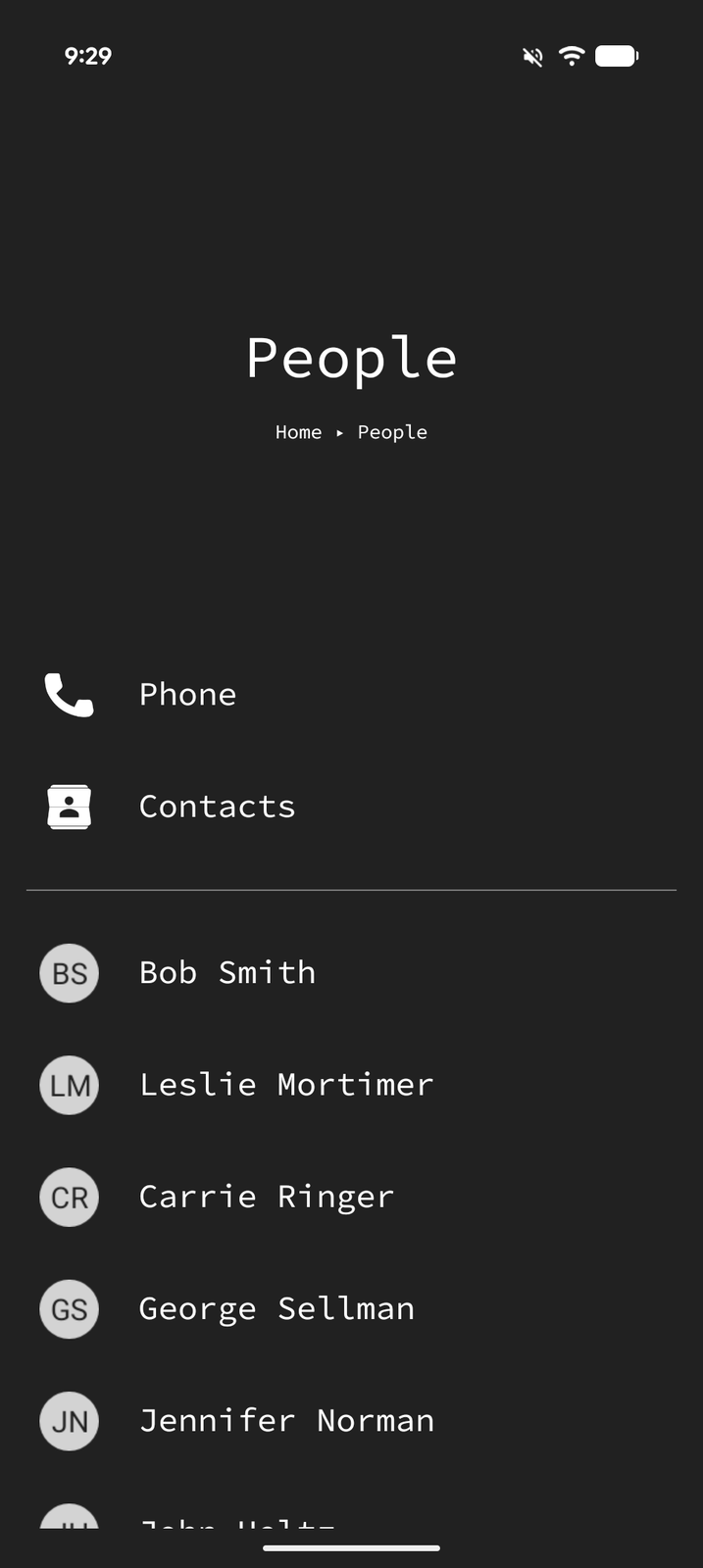
Contact shortcuts let you quickly call or message your favorite contacts directly from your home screen.
Adding a Contact
- Enter Edit Mode and tap +
- Select Contact from the item type menu
- Choose a contact from your phone's contact list
- In the Add Contact sheet, adjust the name if you like and pick a Launch Action — Contact Card (the default), or Call, Text, Email, or Navigate to one of the contact's numbers or addresses — then save
You can also select several contacts and confirm to add them all at once; they're added with their name and photo and open their contact card when tapped.
Using Contact Shortcuts
Tap a contact item to run its launch action — by default, this opens their contact card. To change what a tap does, open the item's Properties in Edit Mode and pick a different launch action.
For everything else, swipe the contact from right to left to open a sheet with their Contact Card plus Call and Text rows for each phone number, followed by their email addresses and street addresses.
System Shortcuts
You can add shortcuts to specific Android system settings screens:
- Enter Edit Mode and tap +
- Select System
- Choose from the available settings screens (Wi-Fi, Bluetooth, Display, etc.) in the picker
This is handy for quick access to frequently used settings without navigating through the system settings app.
The same System picker also includes items that link to built-in destinations:
- App Settings — Quick access to Tree Launcher's settings from any page
- Recycle Bin — Quick access to the recycle bin from any page
See Settings Shortcuts for the full list.